Run your first class in 2 minutes.
Create a room, share the code, push a starter, watch every screen. Prefer to watch? Play the 35-second walkthrough, or jump to whatever you need:
Create a room
Open Teacher login, pick a PIN (min 4 characters) and an optional class title, then Create room. You'll need the PIN every time you reopen the teacher view.
Share the code
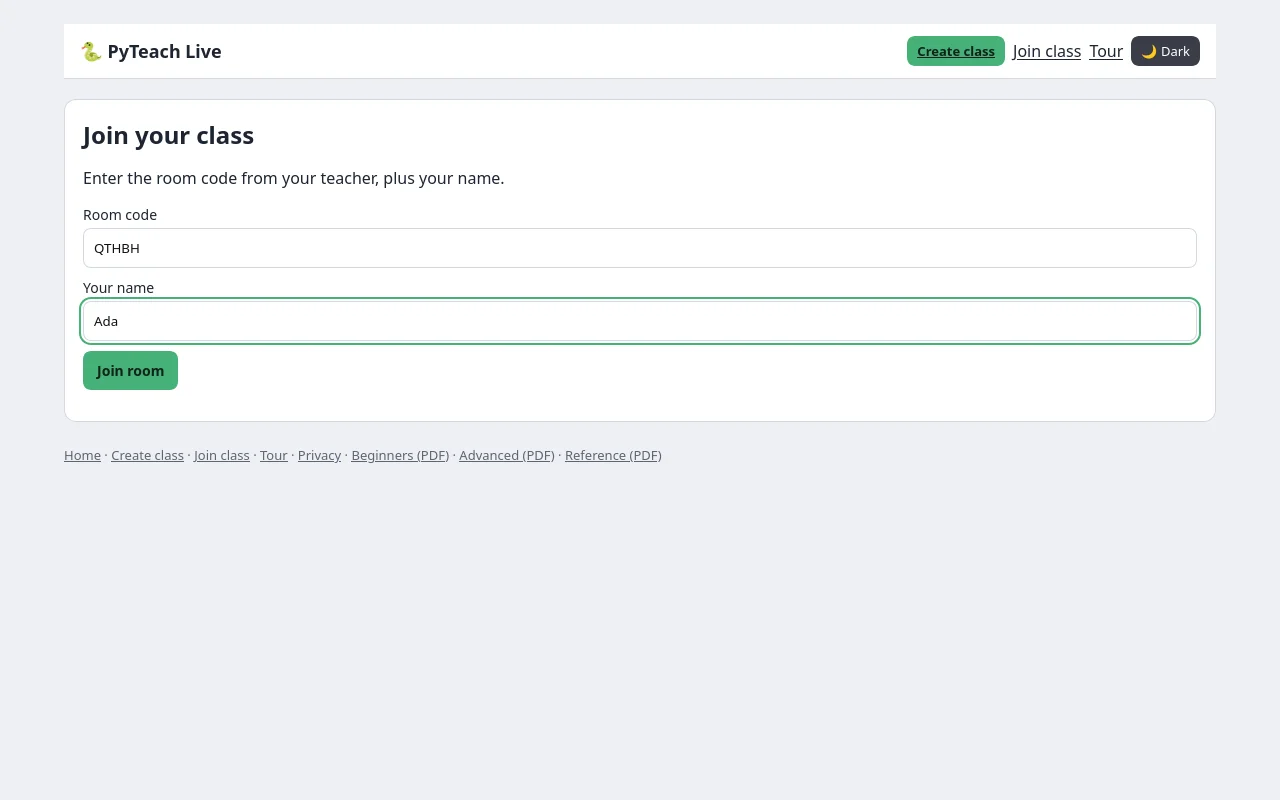
Put the 5-letter code on the board. Students open the join page, enter the code + their name. Nothing to install, no accounts.
Tasks + starters
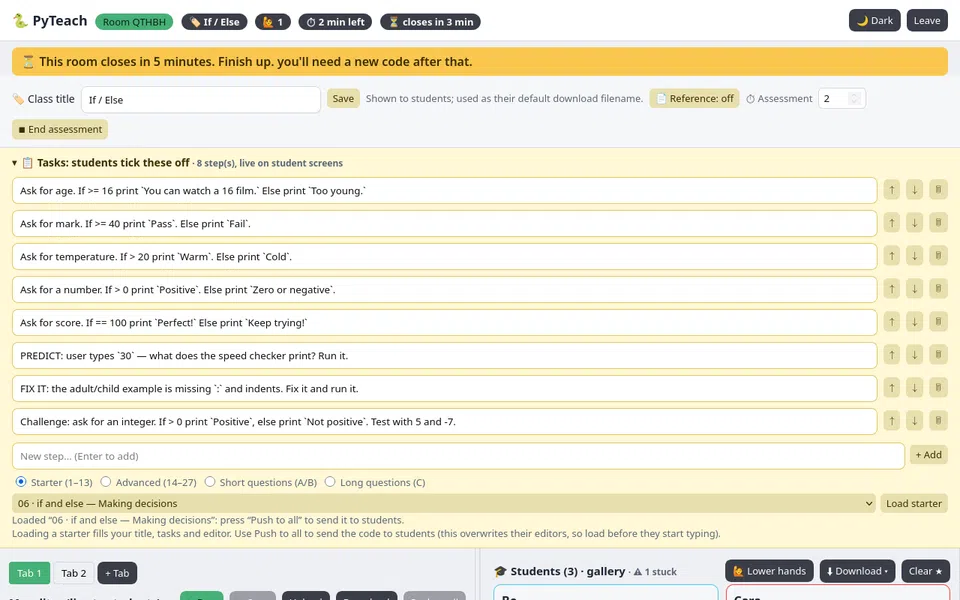
Add checklist steps, or load a ready-made LCCS starter (01 print → 27C mini-projects), a short paper question (Section A/B), or a long paper question (Section C) to fill your title, tasks and editor in two clicks. Students tick steps off; you see done/total per student.
Push to all
Type your demo, then Push to all to put it in every student's editor. Warning: this overwrites their editors, so load starters and push before they start typing.
Watch the gallery
Every student screen previews live with caret, progress bar and badges: offline, ⭐ starred, 🙋 needs help, ⚠ error in output. Pin anyone, then open them to star, rename or remove.
Open & edit anyone
Click a student to type in their code live: they see your caret, you see theirs. Run their code from the drawer to mirror output (and turtle drawings) into their console. Hands stay up until the student or you lowers them.
Stars, hands, stuck
⭐ Star good work (confetti on their screen). 🙋 flags pile up in the header; lower them one by one or all at once. A red card means their last run errored.
Turtle canvas
from turtle import forward, left draws on a canvas beside the console (object style and circle() work too). Drawings sync both ways like console output. If a drawing wanders off, move the camera with the arrow buttons or reset it.
Wrap up + expiry
Download all (.zip) grabs every student's code plus your demo, and Export CSV downloads per-student totals (hand-raises, error runs, tasks done, stars). Rooms close 70 minutes after creation (5-minute warning, then everyone is sent back to join).
Tabs (up to 3)
Each room holds up to 3 workspaces, each with its own code, tasks and console. Loading a starter adds a tab instead of wiping finished work; Push sends the active tab only, and gallery progress follows the active tab.
Reference sheet
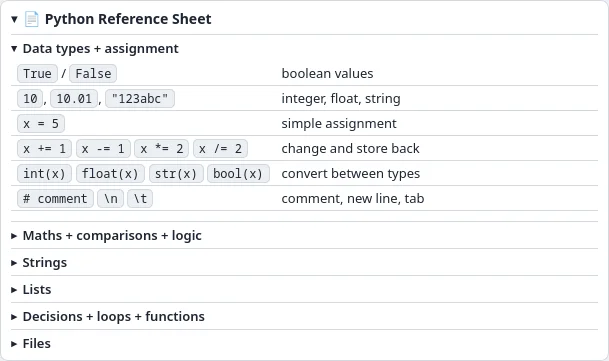
Toggle the official SEC Python reference panel beside the editor. On by default; hidden in assessment mode unless you override.
Error hints
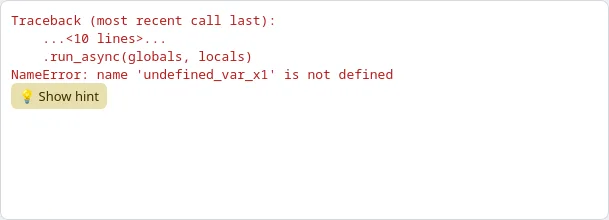
A “Show hint” button appears under tracebacks for SyntaxError, IndentationError, NameError, TypeError, ValueError, IndexError and ZeroDivisionError.
Paste flag
A single edit over 30 characters flags the student in the gallery for 10 seconds and shows them a notice.
Assessment mode
Countdown timer, reference sheet hidden, push disabled, and a zip of all work collected at zero.